¶ View users
If you click on "Users" in the left menu bar, you will see an overview of all users. At the top right you can use the search field to search in all columns of the table.

At the bottom of the page you can see the pagination, the total number of users and you can set the number of rows per page.

With the "Edit" button you can edit a user.

With the "Delete" button you can delete a user.

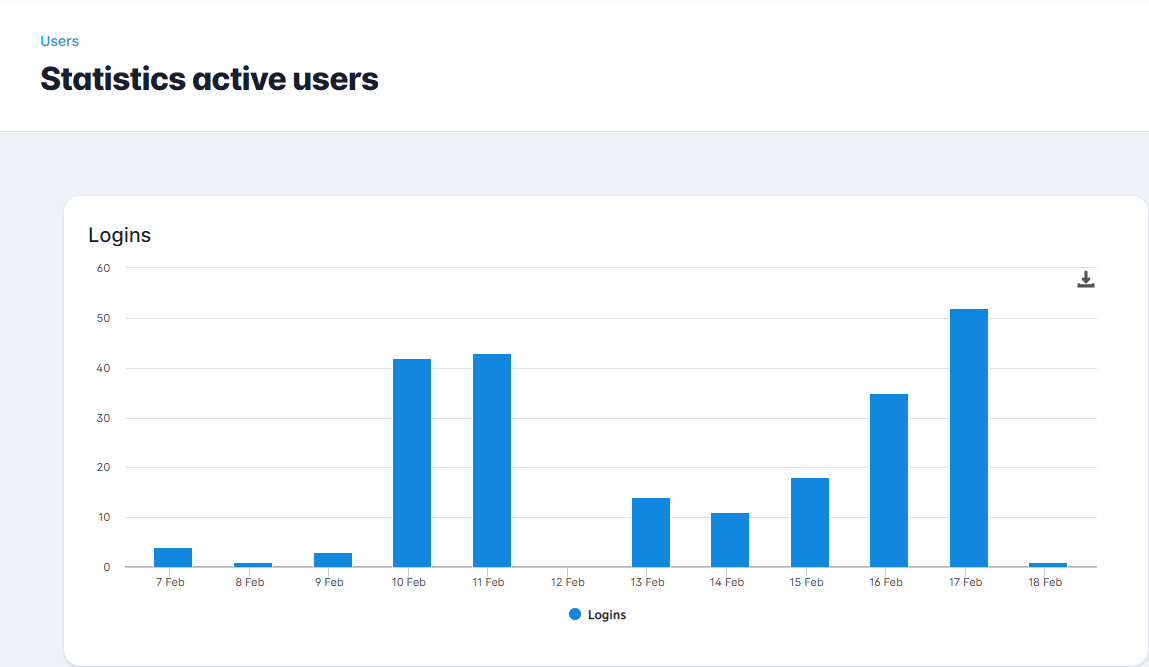
With the "Statistics" button you can view the user activity within your tenant.

This opens a bar chart with the number of user logins per day.
¶ Managing users in bulk
On the left of the table you can tick users. The checkbox in the column header selects every user on the page at once. As soon as you make a selection, buttons appear in the table toolbar that let you manage the selected users in one go. The number in brackets after each button shows how many users the action affects.

- "Deactivate" sets all selected users to inactive in one go, after confirmation.
- "Delete" deletes all selected users in one go, after confirmation. Your own account is always skipped, so the number in brackets only counts the other users.
¶ Access status
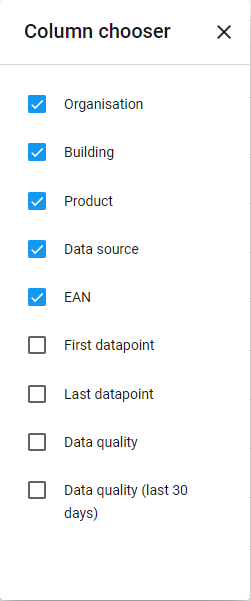
The "Access status" column shows at a glance whether a user has access to anything. The column is hidden by default; you turn it on via "Table options" → "Column chooser". It has three values:
- a grey cross: the user is inactive;
- an orange exclamation mark: the user is active but has no permissions anywhere (no dataset group permissions and no role that grants access to everything);
- a grey check mark: the user is active and has access.
Use the filter in the column header to filter on this (Inactive, Without permissions or With permissions), so you can quickly find, for example, the users that have no permissions anywhere.

¶ Permission overview
The "Permission overview" button opens an overview that shows, per level, which users have access to all or part of that level. The button is located between "Add" and "Statistics".
At the top of the page you use the buttons on the left to choose the level you want to view, for example "Organisations" or "Buildings". Which levels you see here depends on your organisation's settings. Use the search field at the top right to search in all columns at once. In addition, each column has its own search field below the column header, so you can filter per column.

Each row shows the user (email, first name and last name), the role, how much access they have and whether the user is active. For each level the levels above it are also shown as extra columns, so that you see, for example, a building together with the organisation it belongs to.
The "Access" column shows how much access a user has:
- Full access: the permission is set on the level itself or on a level above it.
- Partial access: the permission is set only on a level below it, so the user has access to a part of the level.
Administrators and other roles that have access to everything anyway are not shown in this overview.
With the "Edit" button you open the user in question and with the "Revoke access" button you remove that user's access. Do you want to revoke access for several users at once? Tick the relevant rows and click "Revoke access" in the table toolbar; after confirmation the access of all selected combinations is revoked in one go.

Via "Table options" you can export the table to Excel, choose columns and reset the filters or the view. Under "Column chooser" you can also turn on extra columns that are hidden by default, such as "Last login" and "Valid until date".
¶ Table options
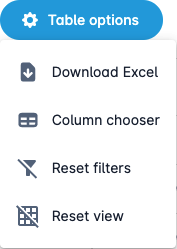
Export
The "Export" button allows you to export all the visible columns and rows in the table as an Excel file (.xlsx). This file will automatically be downloaded to your device.
Column chooser
You can use the "Column chooser" to turn on or off certain columns, so that the table becomes more readable.
Reset filters
The "Reset filters" button disables all filters.
Reset view
The "Reset view" button resets the view to the default view.
¶ Add a new user
¶ General information
You can add a new user by clicking the "Add" button.

This opens the form shown below.
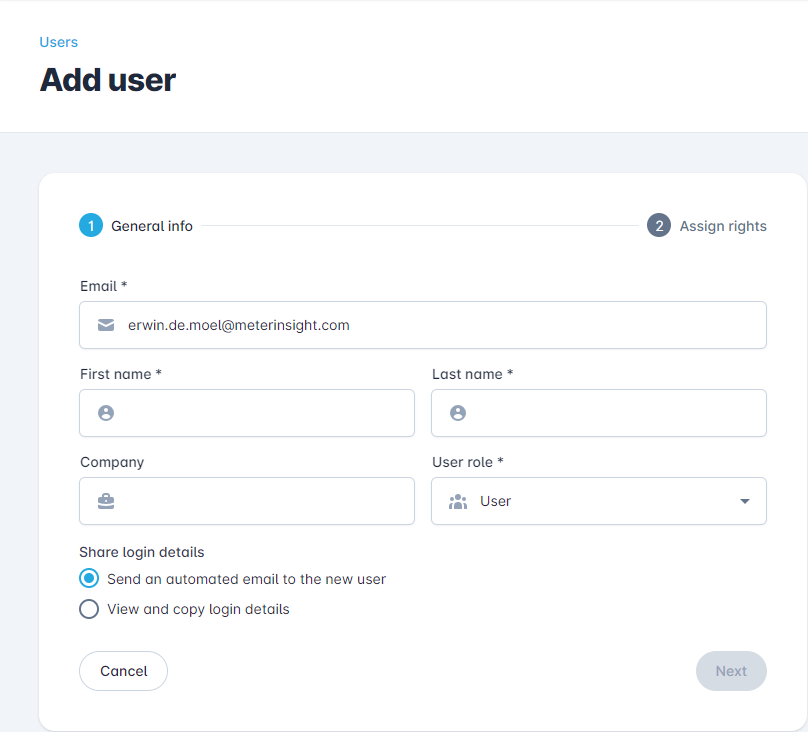
Fields marked with * are required, such as Email and User role.
User roles
There are 4 types of user role:
- Read-only user: can only read and not edit anything.
- User: can also add meter readings.
- Organization administrator: can manage all organizations to which he/she has access and, among other things, create, change and delete buildings and meters.
- Administrator: can manage and mutate everything within the tenant.
With the "Share login data" selection you can choose how you want to share the login name and newly created password with the new user. The option "View and copy login details" can be useful, for example, if you want to write an accompanying text in the Email yourself.
Clicking the "Next" button will take you to the "Assign permissions" screen.
¶ Assign permissions
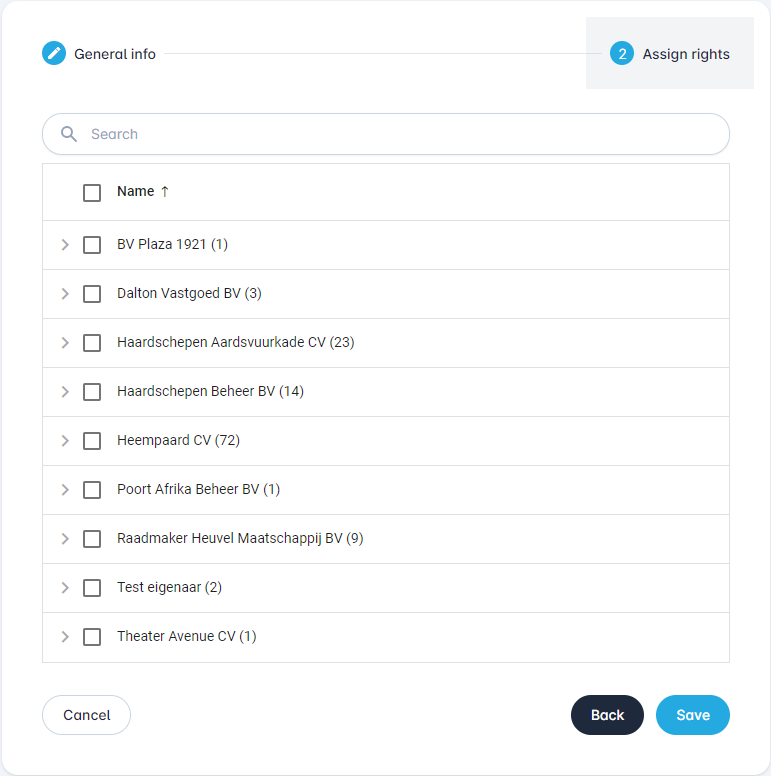
Here you can specify which objects the user has access to. You can select everything, but also make a selection of, for example, certain "Organisations" or "Buildings". The hierarchy you see here depends on your organisation's settings.
When you click on the "Save" button, the user is created.
¶ Forgot password
Has a user forgotten their password? They can easily request a new password via:
https://portal.meterinsight.com/forgot-password
After entering their email address, the user receives an email with instructions to set a new password.
Note (white-label environments):
If you want to send your customers to the white-labelled version of the portal, the custom domain must be used to reset the password. The correct link is then:
https://{{domain}}/forgot-password