You can import new meters via the "Bulk actions" button on the Meters page (under "Management"). When importing meters via the Bulk import functionality, multiple tabs can be used. In this article we explain why this structure was chosen and how you can use it.

When you click "Bulk actions", a window opens with an "Action" dropdown where you choose which bulk action you want to perform. Four actions are available:
- Add objects – This allows meters and the different levels of the organizational structure to be added at once. The tab structure per data provider type and organizational level ensures that the data is linked to the correct components.
- Edit buildings – This allows existing objects and buildings to be updated. This includes updating properties such as opening hours and other building-specific details.
- Edit meters – This allows existing meters to be updated in bulk. Properties such as contracted capacity, connection configuration, and the move-in and move-out dates can be adjusted.
- Add main meters – This allows new main meters to be created at once. Missing dataset groups are created automatically, and for new buildings the address and building-data synchronization can be provided.

Select the action you want under "Action". Then choose "Download excel template" to download the matching Excel template, or "Upload excel template" to process a filled-in template.
¶ Add objects
With the "Add objects" action you add meters and their organizational structure at once. First download the Excel template. An Excel template is then downloaded with a tab per entity, such as Organisation, Location and Building. Each column contains a property. For the meters, a subdivision is made between the different metering companies. This is because each metering company can have different properties.
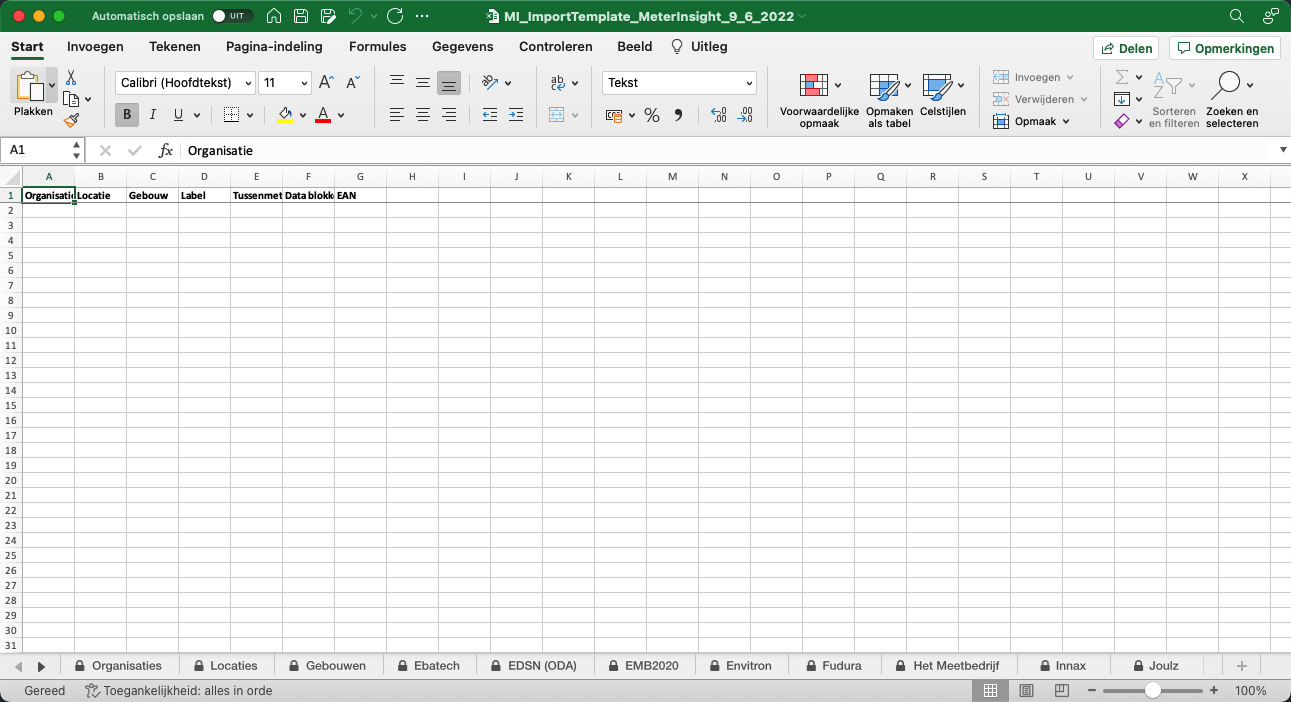
When filling in, you must make sure that the name must be exactly correct in the "Organization" column under the Locations tab, or in the "Location" column under the "Buildings" tab. The import system matches the correct objects on the name of these fields.
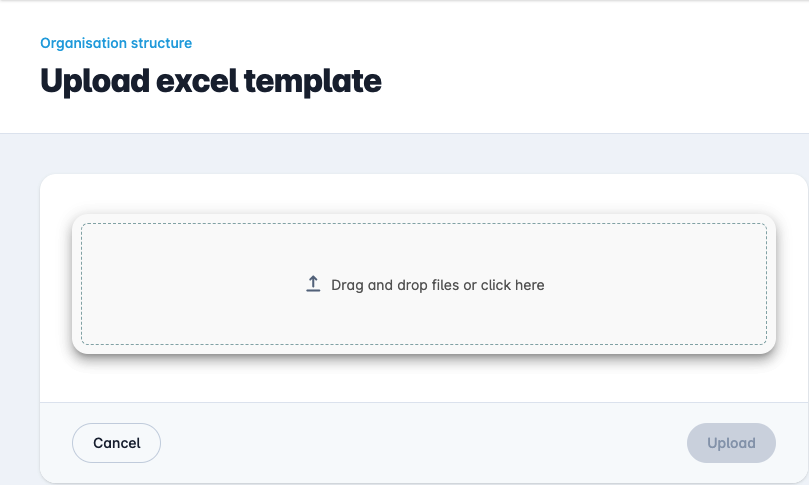
Once the template has been filled in, choose "Upload excel template". On this page you can upload one or more Excel templates.
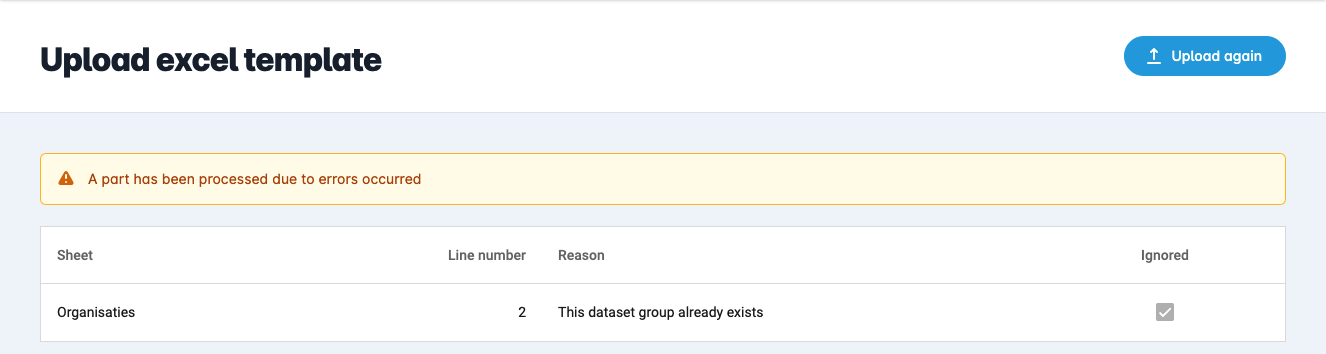
As soon as a number of errors are detected, you will see a table with the wrong values.
If the import was successful, you will see the notification "Excel template is successfully processed".

¶ The different tabs
Each type of meter and data link has specific properties. That is why we have chosen to place different types of meters and their associated properties in separate tabs. This maintains an overview and allows us to specifically request additional information where necessary. For metering companies, EAN will have to be filled in for a main meter, but for intermediate meters (such as production meters), additional properties sometimes have to be filled in. For small consumption meters, only the EAN will have to be filled in on the EDSN (ODA) tab.
For example:
- EDSN (ODA) meters: only an EAN code is required.
- Analog meters: additional properties are required, such as:
- (Unit:) Eenheid (bijv. kWh, m3 of GJ)
- (Direction/channel:) Richting (LDN, ODN, Production)
- (Double meter:) Dubbele meter (JA/NEE)
- BP meters (intermediate meters): sometimes also require additional properties.
¶ The "Label" field?
When there are multiple meters in a building, it can be confusing what a specific meter is for. In that case, it is useful to use the "Label" field to distinguish meters from each other. This could be something like "Main meter floor 1" or "Heat meter office".
¶ Organizational structure
The first tabs are about the organizational structure. Here you indicate which organizational level a meter belongs to. Think of:
- Organization (e.g. MeterInsight)
- Location (e.g. Central Netherlands)
- Building (e.g. Head office)
In principle, you only need to fill in the Name field per tab and, if applicable, the name of the higher level.
¶ Example: adding a main meter
Suppose you want to link a main meter to a specific building. Then fill in at least the following columns in the tab for meters:
- Organization
- Location
- Building
- EAN
Based on this data, the meter is automatically placed in the correct place in the organizational structure.
¶ Add main meters
In addition to the full multi-tab objects template, there is a simpler template specifically for creating main meters in bulk. To use it, select "Add main meters" under "Action" and click "Download excel template".

This template consists of a single flat tab in which each row describes one main meter. Per row you provide:
- the dataset group hierarchy (one column per level, from organisation down to the building);
- the data link – you pick this from a dropdown of the available data links (only smart-meter links such as EDSN/EMV are main meters here);
- the EAN of the main meter;
- a Label.
For a building that is created anew in the same row, you can also provide the address (street, house number, addition, postal code and city) and the building-data synchronization.
When processing the template:
- Missing dataset groups are created automatically. Existing dataset groups (matched by name within their parent level) are reused. If multiple rows refer to the same new group, it is created only once.
- Address and synchronization values are only applied to buildings that are newly created in this import. If the building already exists, these values are ignored and you receive feedback about this.
- If synchronization is enabled for a new building, the existing BAG/EP-Online synchronization automatically fills in the remaining building properties (such as construction year, floor area and energy label).
As with the other actions, the filled-in rows are validated first. If a row contains an error (for example an empty EAN, an unknown data link, or a main meter that already exists), you will see an error message per row and nothing is created until the errors are resolved. Finally, upload the completed template via "Upload excel template".