¶ Configure alarm
If you click on "Alarms" in the left menu bar, you can configure different types of alarms.
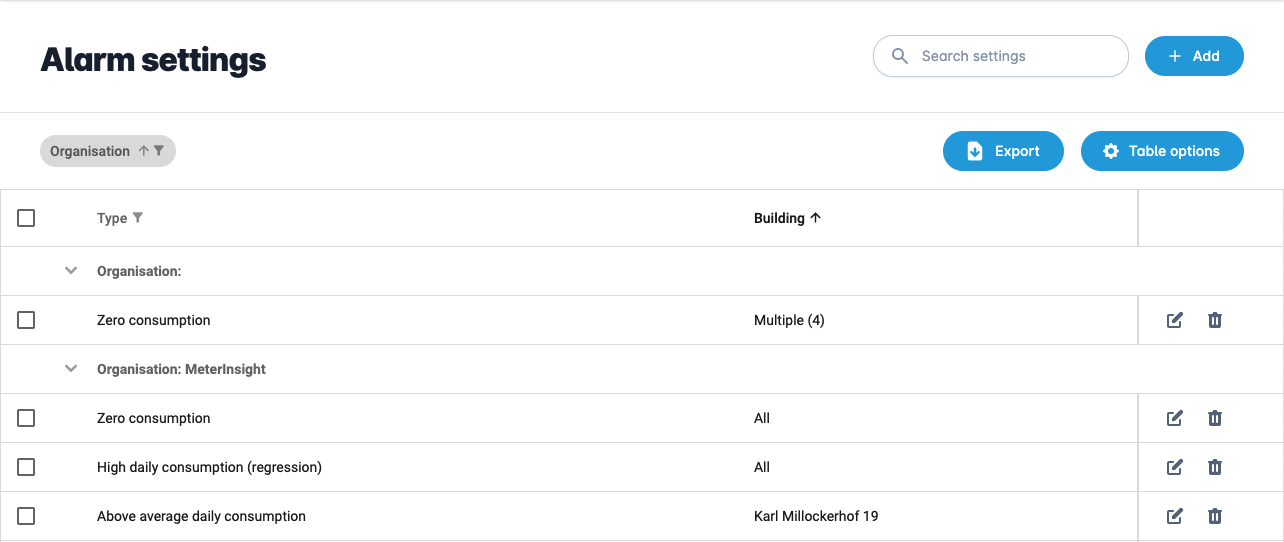
You can add a new alarm by pressing the "Add" button.

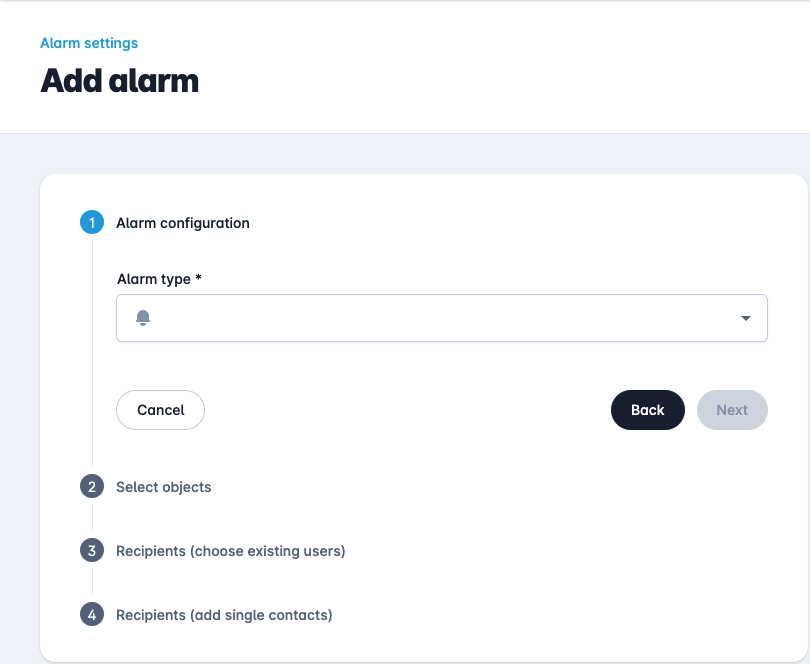
This opens the form below.
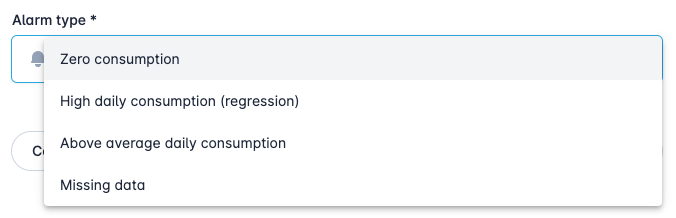
There are several types of alarms that you can choose, including:
- Low return
- Zero consumption
- High daily consumption (regression)
- Above average daily consumption
- High peak compared to contracted power
- Mutations small consumption
- Missing data
Low return
The alarm type "Low return" checks whether a meter's return to the grid (the energy fed back into the grid) over the configured measurement period stays below a minimum value you set. You configure the "Minimal expected return per meter (kWh)" and the "Measurement period (days)". If the return over that period stays below the threshold, an alarm message is sent.

Zero consumption
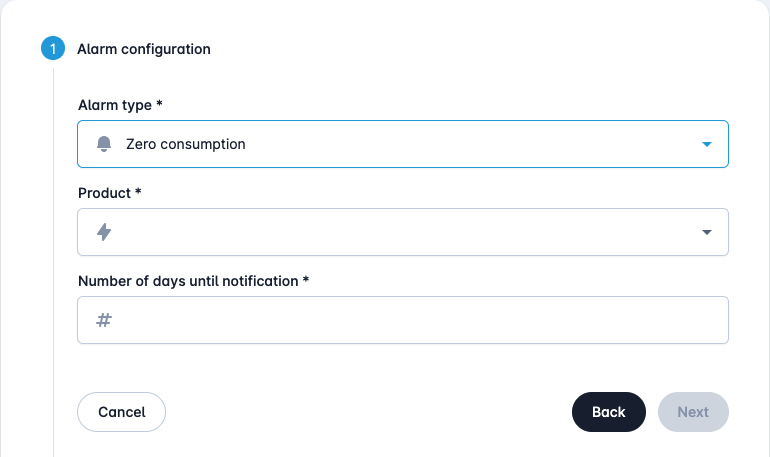
The alarm type "Zero consumption" checks every day whether data was available x days ago, but no consumption was registered. If so, an alarm message is sent.
High daily consumption (regression)
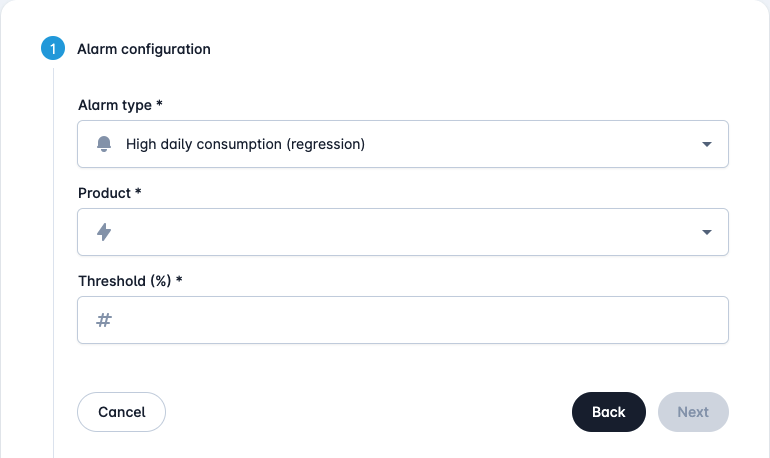
The alarm type "High daily consumption (regression)" predicts yesterday's consumption based on the degree-day sensitivity and yesterday's temperature. If yesterday there was more "Threshold %" consumption than the forecast, an alarm message is sent.
Above average daily consumption
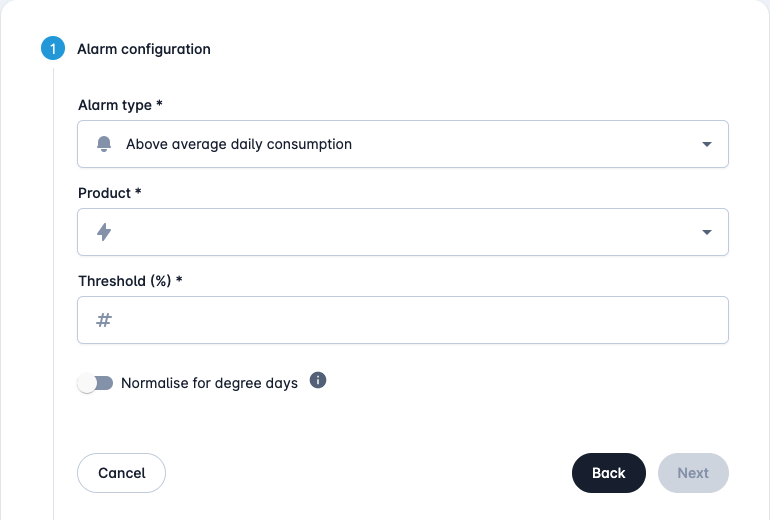
The alarm type "Above average daily consumption" compares yesterday's consumption with the average of the last 2 months. As an option, it is also possible to normalize this on the basis of degree days and thus ignore the influence of temperature on consumption. If this is the case, an alarm message is sent.
High peak compared to contracted power
The alarm type "High peak compared to contracted power" compares yesterday's consumption with the contracted power. The alarm takes into account that the contracted power can vary over the day and over the year. This is the case, for example, with a capacity-limiting contract (CBC), where you receive a lower power during specific time blocks or during specific periods of the year. For every measurement moment of yesterday, the alarm compares the consumption with the contracted power that applies at that moment. As soon as the consumption at any moment was higher than "Threshold %" of the contracted power that applies at that moment, an alarm message is sent. As a result, even a lower peak can trigger an alarm when it falls within a period with a lower contracted power, while the highest peak of the day still stays within its own (higher) contracted power.
For this you set the product and the "Threshold (%)".

Mutations small consumption
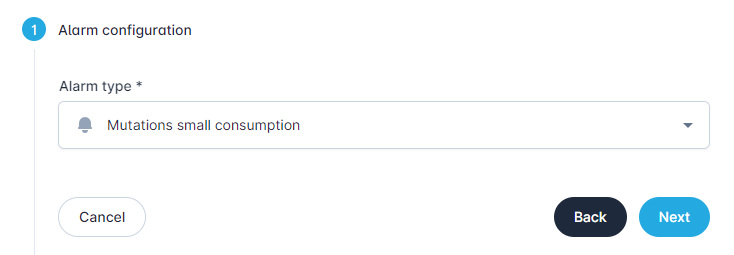
The alarm type "Mutations small consumption" checks whether changes have taken place among contractors, in which case an alarm message is sent.
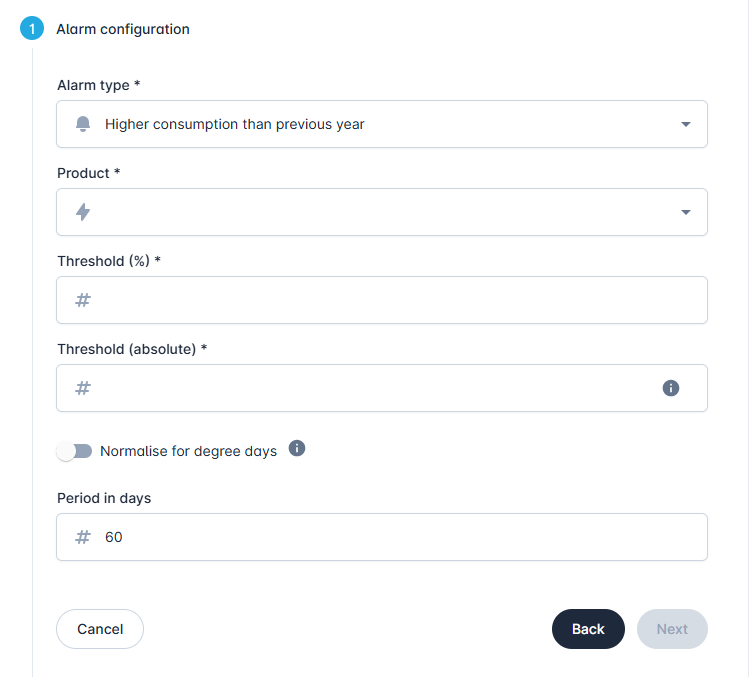
Higher consumption than previous year
The alarm type "Higher consumption than previous year" checks whether there is a high consumption over a longer period, compared to last year.
Missing data
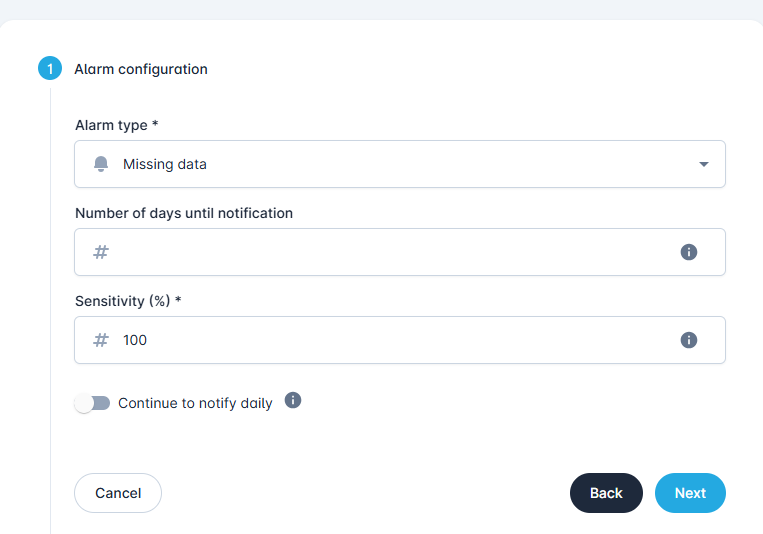
The "Missing Data" alarm type checks daily whether data was missing for x days. If so, an alert is sent. The sensitivity allows you to ignore small data interruptions. If "Continue to notify daily" is selected, the alert will continue until data arrives again; otherwise, you'll receive a one-time notification.
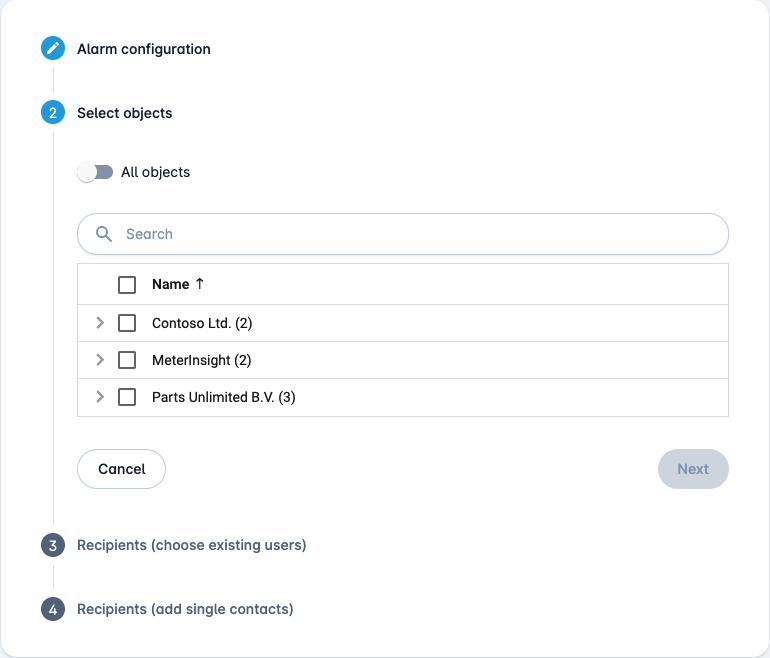
After choosing the alarm type, you can choose which objects this alarm should be applied to. By turning on the "All objects" slide toggle, the alarm will be applied to all objects in your environment.
In this step you can add the recipients of the alarms. You can choose from all users who have access to your organisation.
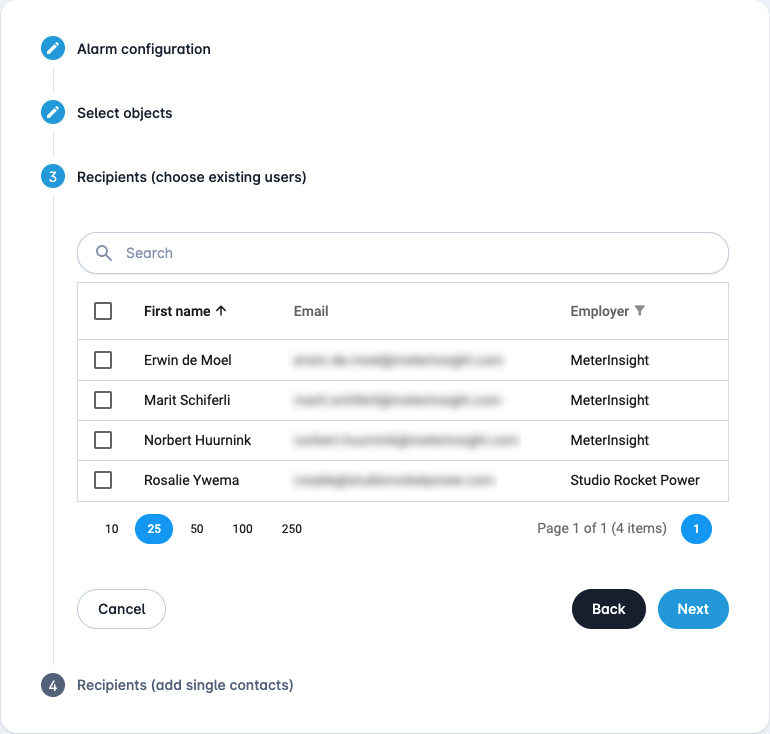
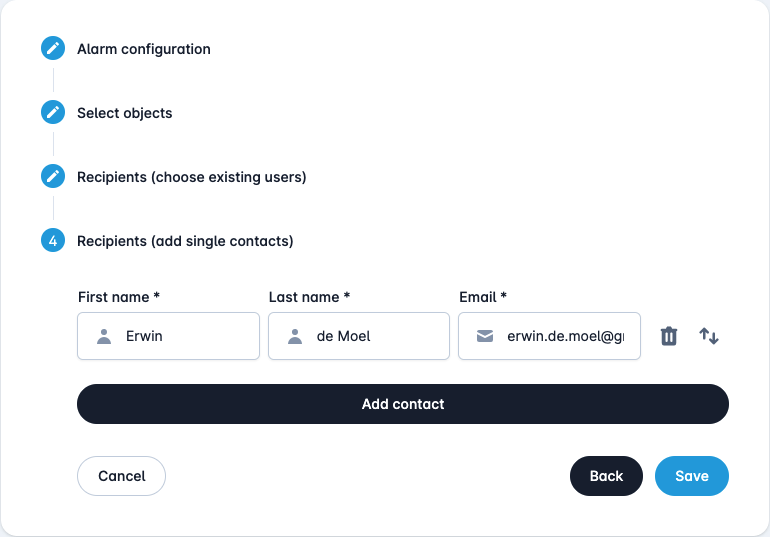
In this last step you can add recipients of the alerts who do not have access to your organisation. For this you only need to enter the first name, last name and email address.